Troubleshooting the Kisi Reader Pro 1
Kisi provides the following guidelines to help you diagnose common issues with the Kisi Reader Pro 1. Please note that Kisi does not oversee your network configurations. If you encounter advanced networking problems (such as firewall rules, DHCP setup, or VLAN settings), consult your IT department or network administrator before proceeding.
Reader not powering on
The front LED remains off entirely.
Troubleshooting steps
- Confirm your PoE source supports IEEE 802.3af (44–57 VDC), or if using low voltage, verify 12–24 VDC output with a multimeter
- Ensure you are not powering the reader with both PoE and low voltage simultaneously — use one or the other
- Check the cable: use Cat6 or better, under 100 meters for PoE, or under 38.1 meters for low voltage
- Try a different PoE port or known-working cable to rule out a faulty port or cable
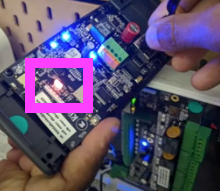
- Remove the backplate and check the BlinkUp LED on the PCB — if it is dark, the reader has no power
Reader offline (red front LED)
A red front LED indicates the reader cannot connect to its controller.
Troubleshooting steps
- In the Kisi dashboard, go to Hardware > Readers and check the reader's assigned IP address and uptime metrics
- Unplug the Ethernet cable for 5 minutes, then reconnect to prompt a fresh DHCP request
- Ping the reader's IP address — a failed ping suggests no valid IP or a cable/hardware issue
- Swap the cable and try a different PoE port
- Confirm the required network ports are open on your firewall — see network requirements
- If the reader still does not connect, perform a BlinkUp — select Clear configuration first, then select the appropriate connection type
BlinkUp problems
Details
Stuck at "No Wi-Fi settings" (long amber flash)
The reader has not received BlinkUp settings. Try again, blocking out direct bright lights and holding the device still during the process.Details
Stuck at "Searching for Wi-Fi network" (long red + two short red flashes)
Check that the network name (SSID) was entered correctly, including capitalization and special characters. The reader supports both 2.4 GHz and 5 GHz networks.Details
Stuck at "Joining Wi-Fi network" (long red + three short red flashes)
Check that the Wi-Fi password was entered correctly, including capitalization and special characters.Details
Stuck at "Getting IP address" (alternating short red and amber flashes)
Confirm DHCP is active on your router and has enough available addresses. Check that MAC address filtering is not blocking the reader. Try plugging the reader directly into the switch on a different port. If it comes online, the issue is with the original cable or port.Details
Stuck at "Resolving server name" (alternating short amber and red flashes)
Check DNS settings on your router. If the router uses a DNS Relay mode, try disabling it.Details
Stuck at "Connecting to server" (alternating long amber and short red flashes)
Check firewall settings. The reader requires an outbound TCP connection on port 31314.Details
Flashing red rapidly in a pattern inconsistent with the above
This indicates a power supply issue. The device boots but Wi-Fi power draw reduces the operating voltage below tolerance, causing a reset loop. Check the power supply.Reader online but credentials not working (blue LED, red on scan)
A blue front LED means the reader is online. A red response on scan indicates an access denial.
Troubleshooting steps
- Card
- Mobile (Tap to Unlock)
- Confirm the user has activated their card using the link in the card activation email
- Confirm the card is assigned to a user with valid access rights to the door
- Confirm the user has a Kisi account and valid access rights to the door
- On iPhone: confirm Bluetooth and Location Services are enabled
- On Android: confirm NFC and Location Services are enabled
- Go to Hardware > Readers in the Kisi dashboard and confirm the reader is assigned to the correct door — see assign a door to a reader
Dim blue LED
Dimmed blue LEDs indicate a weak Wi-Fi signal. Move the reader to a location with a stronger, stable signal or switch to a wired Ethernet connection.
Video guide
Need more help?
Contact our support team. When reaching out, include:
- The reader's Device ID
- Logs, screenshots, or video of the issue
- Your network setup details
- Steps you have already taken